
ONHARU User Guide
This guide and its screenshots cover the official ONHARU 2.2.25 release.
1The calendar window
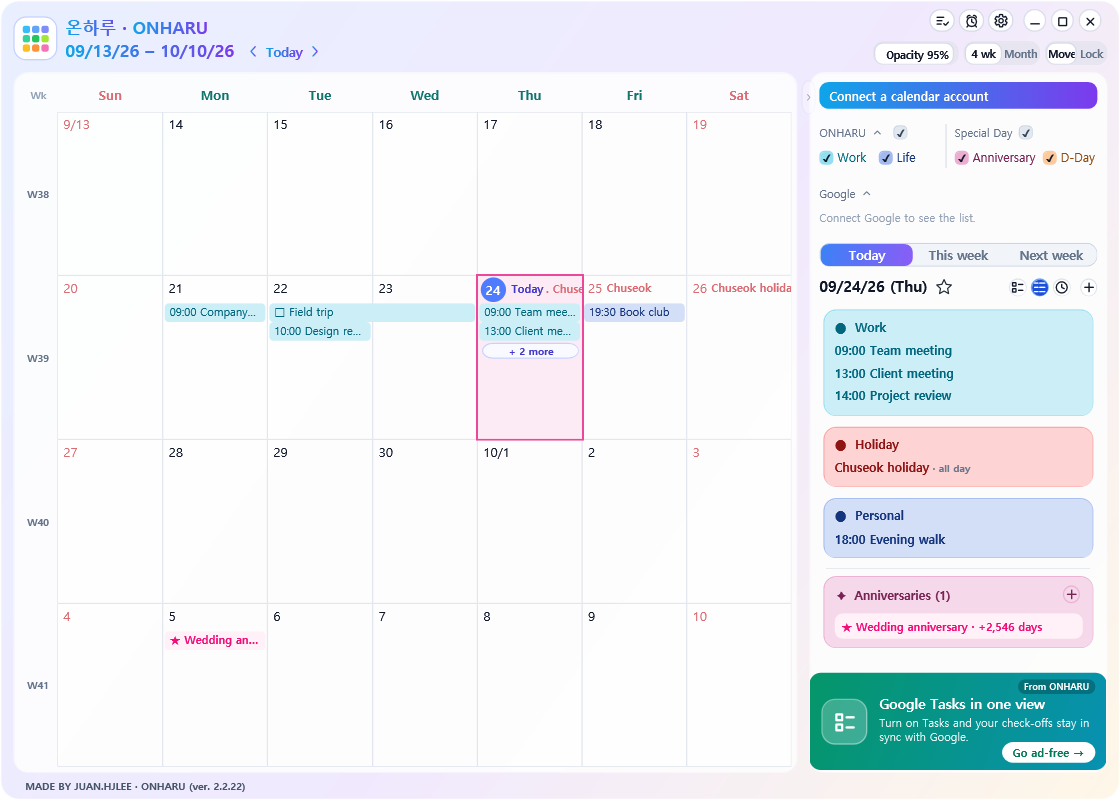
The currently viewed period is displayed. Click this text to go directly to the desired year and month.
Search, timetable, alarm, and Settings appear here. Settings lets you show only the icons you need.
Use the switches to change the calendar period, theme (Pastel or Dark), and mode (Move or Lock).
Use the transparency control in the upper-right toolbar to adjust how much of the desktop shows through. Its caption displays the percentage.
Events appear as bars in each date cell. Select +N more to see events that do not fit.
The events for the selected date are shown as cards. You can change the range to Today, This Week, or Next Week.
Fold the detailed event panel
Pressing the small arrow between the calendar and the detailed panel folds the panel and expands the calendar. Press again to unfold. Ctrl+B does the same thing. It stays out of the way while you are typing an event title or a search term.
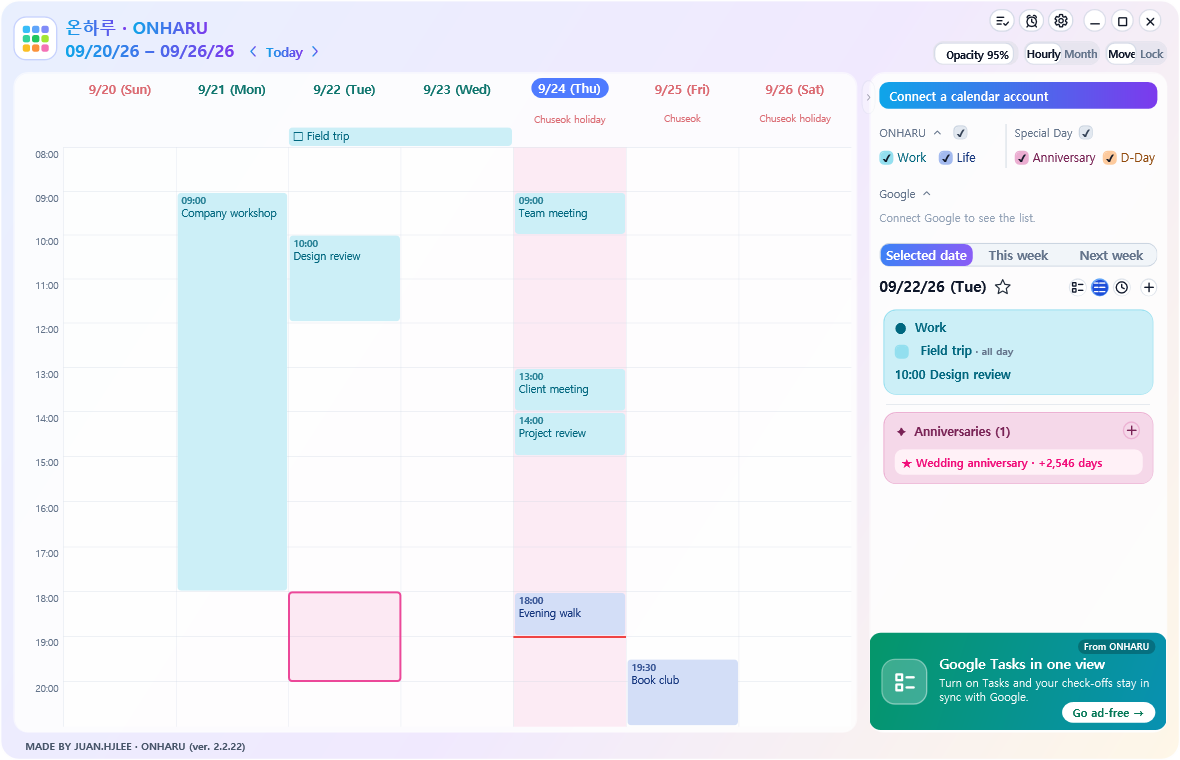
1 week (hourly)
Selecting empty space chooses a one-hour block. Selecting an event highlights its full duration; overlapping events are each highlighted according to their own duration. When you drag an event to another time or date, the selection outline follows it to the new position.
Selecting, double-clicking to open an event, and checking a to-do's □ work the same in Move and Lock modes. Double-click an all-day or multi-day bar at the top to edit it, or drag the bar to another day to change its date. Events that cross midnight continue into the next day.
Double-click an existing event to open Edit event. The create and edit windows use the same fields in the same order.
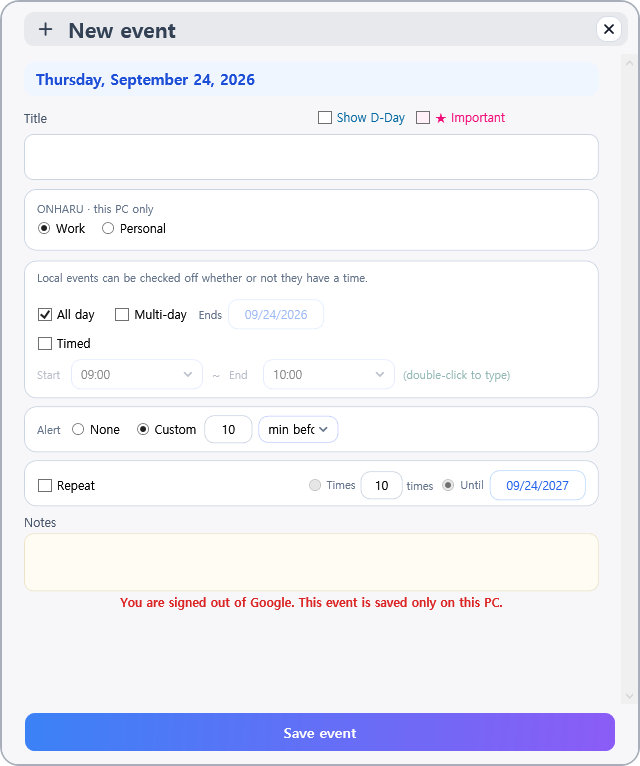
Create an event
Edit an event
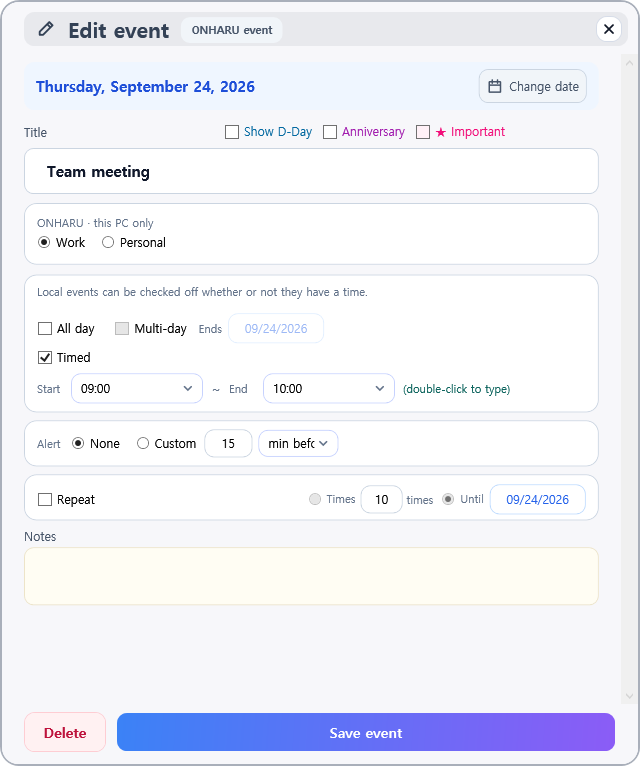
| Two screens are the same | Title, D-Day display, ★ Important event, storage location, all day/multiple days, AM/PM and time, alerts, recurring event, memo. The positions and names of the boxes are all the same. |
|---|---|
| Only on the edit screen | The edit window shows the event's calendar beside the title and provides Change date and Delete. Important events also have background and text color controls. |
| After editing | Select Save event to apply your changes. Closing the window without saving discards them. |
| Title | This is the event name. It will not be saved if left blank. |
|---|---|
| Display D-Day | When turned on, it also appears in the right detail panel with a D-Day card that counts the remaining days. |
| ★ Important Event | Shown with a star and the important color in the calendar and the detail panel. Turn on Important events first in Settings to place them ahead of other events. |
| Storage location | Choose whether to save only to ONHARU or to a connected Google or Outlook calendar. Without a connected calendar account, events are saved only on this PC. |
| All day | An all-day event without a time. It is displayed as a band-shaped bar on the calendar. |
| Multi-day event | Set a start date and end date for an event that spans several days, such as a trip. |
| AM · PM | When you select one, a field to choose the hour and minute appears below it. If both are turned off, it reverts to all day. |
| Notification | Choose None or a reminder before the event, measured in minutes, hours, or days. |
| Repeat event | Choose daily, weekly, or monthly recurrence and an interval such as Every 2 weeks. ONHARU describes the current rule in plain language. End the series after a specified number of occurrences or on an end date. |
| Memo | You can write in multiple lines. It is displayed together on the card in the detail panel. |
What you can do in a calendar cell
| One tap | Select that date. The detail panel on the right will change to that date. |
|---|---|
| Double-click a date number | Quick entry opens for that date. With natural date and time recognition enabled, it can read a date, time, and recurrence from one line. |
| Double-click a event | The modification window for that event will open. |
| Drag and drop events | Drag an event to another date in Move mode. Hold Ctrl while dragging to copy it instead. |
| +N more | A small window showing the entire event of the day will open. |
In Move mode, ONHARU behaves like a regular window. In Lock mode, it sits above the wallpaper and below desktop icons. Use the Move · Lock switch in the header. Lock mode requires ad-removal access.
Drag the window border to change the size, and drag the header to move it. Maximize and drag event/detail cards are used in this state. Dragging must be enabled in the settings. It may be obscured by other app windows.
Requires ad-removal access. The calendar sits beneath desktop icons, which remain clickable and movable. It is not an always-on-top window: other app windows can cover it.
2Creating and editing events
Double-click an empty area in a date cell, or select + above the detailed calendar, to create an event.
Events and to-dos
An event happens at a time; a to-do is something you mark as finished. In ONHARU a timed event can carry a completion checkbox as well. Completion for local events and ordinary Google Calendar events is stored on this PC, and only Google Tasks items sync their completion status with Google.
Edit or delete an event
Double-click an event in either calendar to edit it. For a recurring event, choose which occurrences an edit, move, or deletion affects.
Completion check
Select the square beside a to-do in the detailed calendar to mark it complete. In Settings, choose how completed items appear: normal, faded, or hidden.
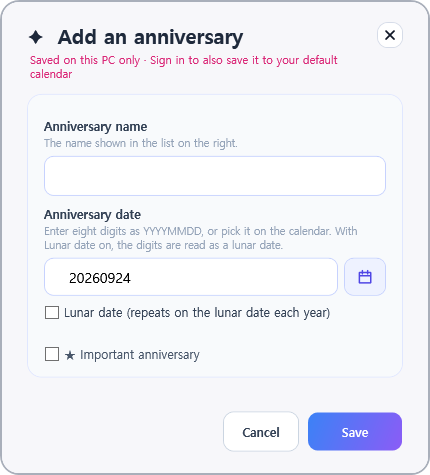
AnniversaryCounts recurring annual days
Select + on the Anniversary card in the detail panel. Enter its name and date without choosing a type, observing a count limit, or setting D-Day separately. Control anniversary D-Day display once under Anniversary display in Settings → Detail panel.
Where it is saved: When you are signed in to Google or Microsoft, the anniversary is saved both on this PC and in the connected account's default calendar. Without a signed-in account, it stays on this PC only. Changes and deletions made in the default calendar are reflected in ONHARU on the next sync.
Lunar dates: Enable Lunar date to read the month and day you enter as a lunar date. Enable Leap month when applicable. ONHARU shows the corresponding Gregorian date for this year and calculates the next occurrence.
Convert between events and anniversaries: Select Turn into an event in the anniversary window and confirm. In the event editor, enable Anniversary and save to turn a regular event into an anniversary.
★ Important anniversary: Choose the important mark and its fill and text colors. It appears with a star, bold text, and those colors on the calendar and Anniversary card, and moves forward when Important first is enabled.
Frequently asked questions (FAQ)
I deleted an event by mistake
Why is the repeat rule locked?
3Top features
Four top features
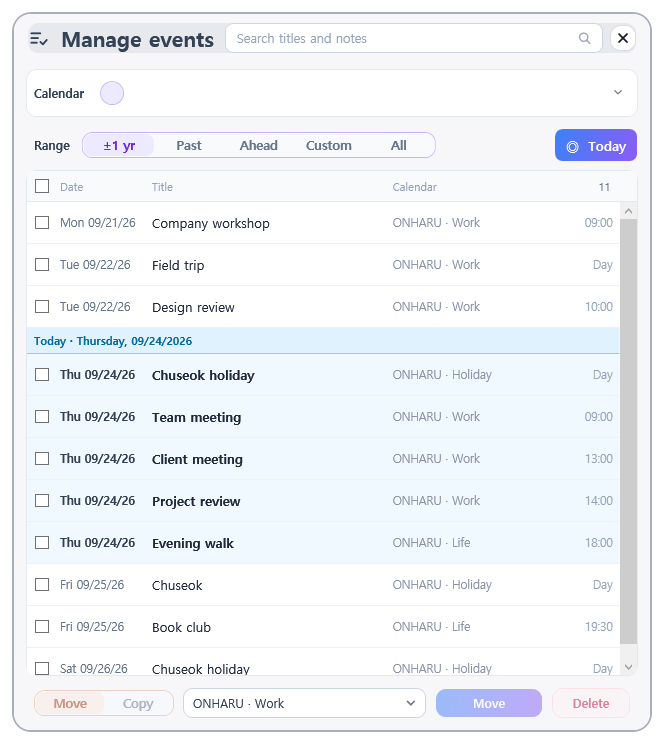
1Manage events · findSearch in title and memo
Search events in title and memo. You can narrow down the period, and Double-click the result will open that event.
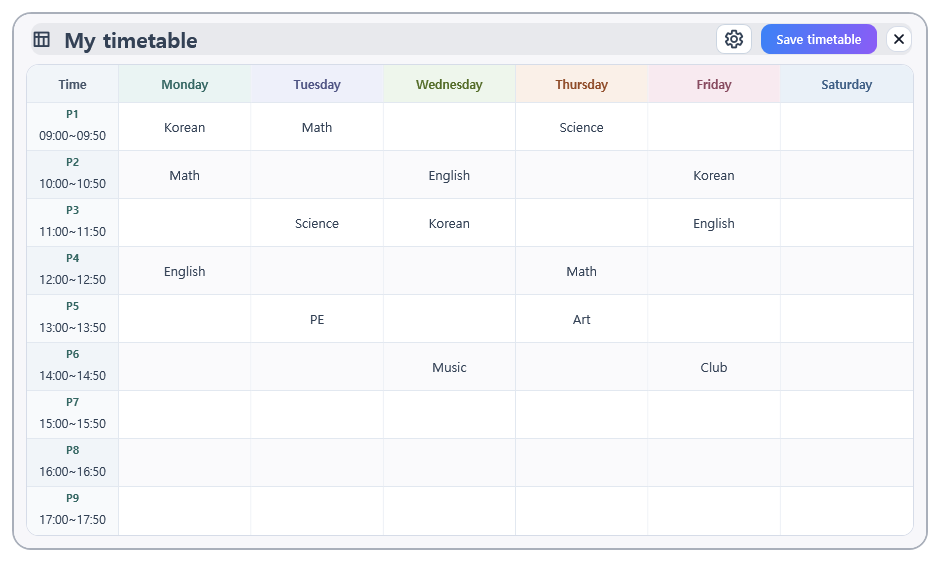
2TimetableWeekly event arranged by days and periods
This is a weekly event arranged by days of the week and class periods. You can set the number of periods, class length, and break times, and you can click on a box to enter information directly.
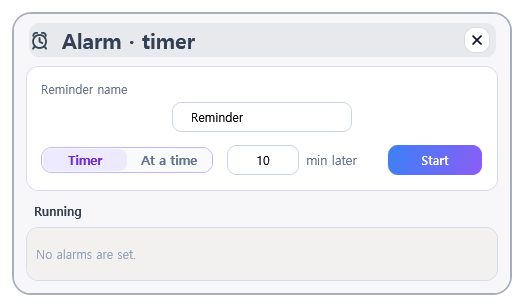
3Alarm · TimerTime alarm and remaining time timer
Set an alarm for a specific time or a timer for a duration. A time written as 900, 0900, 9:00 or 9 is read as 09:00. Active alarms and timers are listed below.
4SettingsEverything in chapter 5 is here
Includes all items of Chapter 3 of this manual. Always displayed and cannot be hidden.
See the Chapter 3 settings reference, which covers all twelve cards.
4Putting it on the desktop
Move and Lock
When locked, the calendar becomes part of the desktop and follows desktop behavior. Use Move mode for anything you need to drag into place, and double-click the ONHARU icon in the notification area to switch between the two modes at any time.
| Action | Move | Lock |
|---|---|---|
| Move · Resize · Maximize the window | Available | Not available |
| Drag an event to another date | Available when enabled in Settings | Not available |
| Drag to reorder detail cards | Available when enabled in Settings | Not available |
| Tooltips and hover response | Shown | Not shown |
| Keyboard input on the main calendar | All input | Only Ctrl+Z and Ctrl+B |
| Click · Double-click | Responds on press | Responds on release |
| Drag-select desktop icons | Not applicable | Drag across an empty part of the calendar |
Everything else works the same in both states — wheel scrolling and period navigation, the transparency control, pop-up windows (Search, Settings, New event, Timetable, Alarm), and minimizing to the tray. In the locked main window you cannot type ordinary text or drag items.
Closing the app: The X button exits ONHARU completely. Minimizing to the tray only hides the window, so notifications and synchronization continue.
Choose the startup mode
Choose the startup mode in Settings: Previous mode, Always locked, or Always movable. Lock mode requires ad-removal access.
Notification area icon
ONHARU appears in Alt+Tab even in Lock mode. To bring a hidden calendar back, right-click its tray icon.
That menu gathers the window commands in one place.
| Minimize · Maximize · Restore size | What a normal title bar would do. ONHARU has no title bar, so these live here. |
|---|---|
| Switch to Move mode · Switch to Lock mode | The current mode is checked and cannot be selected. This works even if you hid the Move/Lock buttons. |
| Move the calendar with the keyboard | Moves the window with the arrow keys, for when the window sits where the mouse cannot reach it. |
| Bring to this screen | Pulls the window back into the screen you are looking at after a monitor or scaling change left it outside. |
| Reset opacity | Returns opacity to 100%, for when the window was made too faint to find. |
| Exit | Closes ONHARU completely. |
Frequently asked questions (FAQ)
The calendar is not visible
Desktop icons appear behind the locked calendar
Window size cannot be adjusted
When I change the monitor, the layout is disrupted
5Settings
Select the gear to open Settings. The 12 cards are organized under four sections on the left: Display / Events & controls / Accounts & data / App. Selecting a section shows only its cards and opens the first one. Selecting a card opens that card alone, closes the others, and remembers the last card you viewed.
Select Save Settings to keep changes. The printer icon opens Print Preview, and the information icon opens product information.
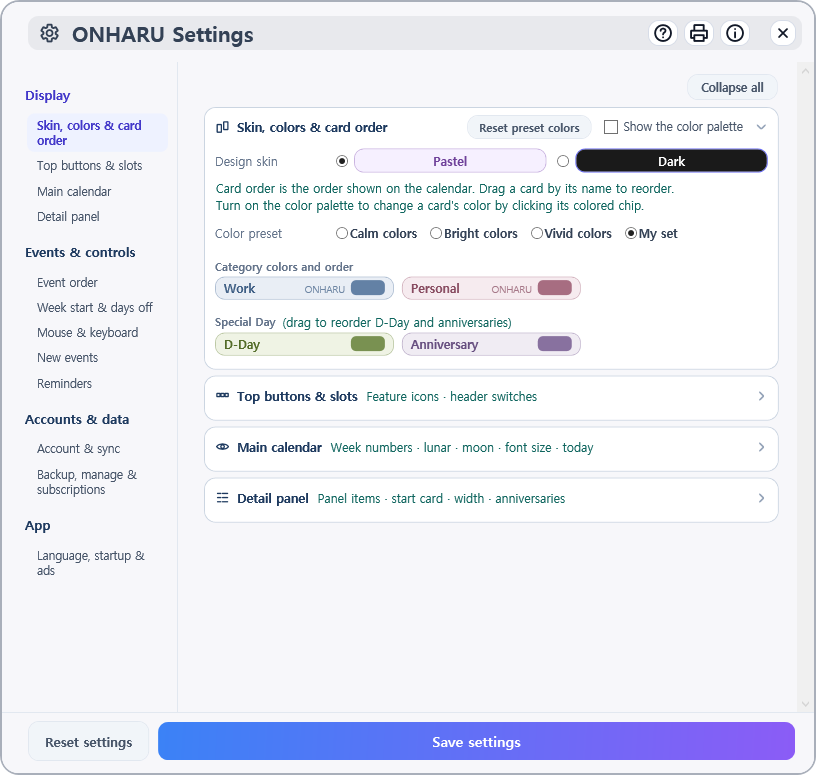
Display
1Skin, colors & card order
| Design skin | Choose between Pastel and Dark. This is the same setting as the skin switch button on the main screen. The third tile, Auto (from 2.2.25), follows the desktop wallpaper brightness. Picking Pastel or Dark from the header turns Auto off — otherwise the next reading would flip it back and the button would stop responding. |
|---|---|
| Color combination | Choose Calm, Bright, Vivid, or your saved custom colors, then select the preset's apply button. |
| Category colors and order | Drag ONHARU and connected-calendar cards within one grid to set their display order. D-Day stays outside the grid because it follows its event. |
| View·Reset Color Palette | Turn on palette view and select the color area on the right of a color card to change its color. Reset color combination restores the default combination and keeps your custom set. |
| Connected calendar colors | After connecting Google or Microsoft, color cards appear for its calendars and holidays. |
2Top buttons & slots
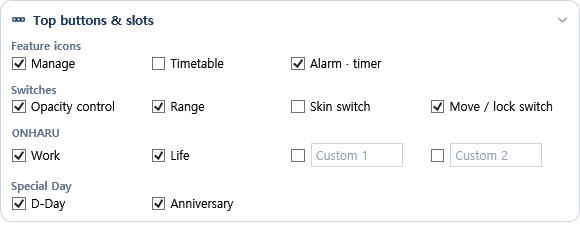
| Function icons | Show or hide Search, Timetable, Alarm, and Timer. The Settings icon is always displayed. |
|---|---|
| Switch button | Show or hide the period, theme, and Move/Lock switches. The tray menu can change modes even when the switch is hidden. |
| Adjust transparency | Show or hide the transparency slider on the main screen. |
| Opacity applies to (from 2.2.25) | Sets what the opacity slider in the header makes transparent. Everything fades the whole window together, text and cards included; Background fades only the surfaces, so text, event bars and detail cards stay solid, which keeps them readable over the desktop. Everything to begin with. |
| ONHARU categories | Show or hide Work, Personal, User 1, and User 2. Rename the two user slots here. |
| Special Day | Choose whether D-Day and anniversaries appear in the detailed calendar. |
3Main calendar
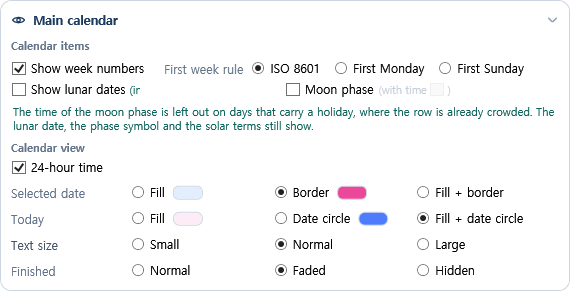
| Week Display & Rules | Display week numbers and select the calculation basis. Choose among ISO, first Monday, or first Sunday. ISO counts the week containing the first Thursday of the year as the first week, while the others count from the first Monday or first Sunday of the year as the first week. The weekday of the first column is set separately under Week start & days off. |
|---|---|
| Lunar calendar, moon phase | Select the information shown beside dates and in hourly-week column headers. On holidays, only the moon-phase time is omitted to save space; the lunar date and phase symbol remain visible. |
| Calendar view | Set the 24-hour format, selected-day and today styling, font size, and finished-event appearance. |
| Highlight Selected Day·Today | Choose the highlighting method and color for the date. The hourly-week header uses the same Today setting, drawn as a pill to fit its longer date label. |
| Font size · Completed event | Choose the font size, and set completed events to normal, faded, or hidden. |
| Fade past events (from 2.2.25) | Shows events that ended before today in a lighter tone. Timed events fade once their end time has passed; all-day events fade once their end date has passed. An event that is also a finished to-do does not fade twice. Off to begin with. |
4Detail panel
| Unfinished to-dos | Choose how far back the unfinished-to-do list looks. Its toolbar button cannot be hidden. |
|---|---|
| Card start status | Choose between Collapse All · Restore Previous State · Expand All. Restore Previous State remembers the last card collapse state. |
| Width when expanded | Choose whether the window widens when expanding the detail panel would squeeze the main calendar. It never widens in Lock mode. |
| Anniversary display | Choose what an anniversary card shows alongside the name — + days, years and days, or D-day. |
Events & controls
5Event order
| Group by | Choose category order or one overall chronological order. The latter skips the category step. |
|---|---|
| Event display | Choose whether finished to-dos move down and whether important and multi-day events take priority. |
| Resulting order | The card numbers the rules that are currently active: finished → important → multi-day → all-day → category → start time. |
6Week start & days off
| Start day of the week / Holidays | Set the day of the week for the first column of the calendar and the day to mark as a holiday. |
|---|
7Mouse & keyboard
| Drag | Under Drag to move events, enable Google events, detail cards and Special Day cards separately. Dragging works in Move mode only; hold Ctrl while dragging to copy. |
|---|---|
| Navigate the calendar with the wheel | Each wheel notch moves by one week or by the next/previous display period. This works in both Move and Lock modes. |
| Shortcut keys | Lists the shortcuts you can use — Ctrl+B collapses and expands the detail calendar on the right (it works in Lock mode too), and Ctrl+Z undoes the last event you added, changed or deleted. |
| Tray quick view | Choose what a double-click on the tray icon switches between — Move ↔ Lock or Move ↔ Hide. |
8New events
| Default calendar | The preselected storage location for a new event. Choose an enabled ONHARU category or an editable Google or Outlook calendar. |
|---|---|
| All-day · Time specified | Choose whether new events are all-day or timed. For timed events, set the default start time. Default reminders are configured below. |
| Quick entry · Timed-event duration | Choose whether double-clicking a date number opens quick entry and whether ONHARU recognizes dates, times, and recurrence in the text. Set the default duration for timed events. |
9Reminders
| Notifications · sound | Turn event notifications and their sound on or off. |
|---|---|
| Quiet hours | Set the start and end of the quiet period. |
| Default · all-day reminders | Set the default reminder and the reminder time for all-day events. Choose None to disable either reminder. |
| Cards that can notify | Choose which ONHARU or connected-calendar cards can send reminders. Turning notifications off disables this selection as well. |
| Position | Show notifications in the center of the screen or above ONHARU. |
Accounts & data
10Account & sync
| Calendar list · Editing | Choose which connected Google or Outlook calendars are shown and editable. Read-only calendars cannot be modified. Edit permission also controls which calendars can be the default destination for new events. |
|---|---|
| When not connected | External calendar lists are hidden until you connect an account. |
| Automatic synchronization | Disable automatic sync or choose 5, 15, 30, or 60 minutes. A connected calendar account is required. |
| Account name | Fixed truncates a long name with an ellipsis. Scroll if long moves it horizontally within the account card. |
| Separate Google birthdays | On, birthdays from Google Contacts are collected into their own card you can switch on or off at once. Off, they appear inside their original calendar. |
11Backup, manage & subscriptions
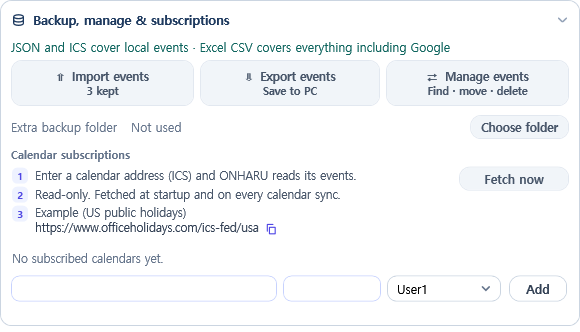
| Import | Restore events from an automatic backup, dormant local data, or a JSON, ICS, or CSV file. |
|---|---|
| Export | Save events as JSON, ICS, or CSV. CSV includes Google events. |
| Manage events | Remove events in a selected range. Review the target and date range before confirming. |
| Calendar subscriptions | Add an ICS address (https:// or webcal://) and name, then choose Work, Personal, User 1, or User 2. Up to 10 calendars are supported. Choosing a user slot gives it the subscription name (up to 10 characters) and enables it. Its visibility checkbox stays in sync with that slot. Removing the last subscription using the slot clears its name and disables it. |
| Fetch now | Fetch subscriptions immediately without saving Settings. ONHARU also fetches them at startup and when Google sync runs. If a fetch fails, it keeps the last successful copy. The example address has a Copy address button. |
| Subscription limits | Subscribed events are read-only: they cannot be edited, moved, deleted, or given reminders. They are excluded from event backups and exports. Some recurrence exceptions and complex time-zone rules may differ from the source. |
| External backup folder | Pick a USB or cloud-sync folder and ONHARU also writes a copy of the event and settings backup to ONHARU-Backups inside it. Choose Off to stop. |
App
12Language, startup & ads
| Start screen | Start with today or the last viewed date. |
|---|---|
| Start position status | Restore the previous mode, or always start in Move or Lock mode. |
| Check for automatic updates | Automatically check for a new version. Whether to install is decided by the user. |
| Create report | Previews one report containing recent error records and PC details. Event titles and notes are excluded, and email addresses are removed. |
| Language and date display. | Select system language, Korean, English, and date format. After changing the language and saving, choose 'Later' or 'Restart Now.' If you select Later, it will apply from the next run. |
| Remove ads | Enter and apply an ad-removal key to clear the banner slot and unlock collapsing the detail panel and pinning to the desktop. Payment is not connected yet. |
| Reset settings | Restores settings to the defaults of a fresh install. Events, account connections, folder paths, window placement and per-date colors are kept. |
Updates
With Check for updates enabled, ONHARU asks before installing only when a newer release exists. If you approve, it downloads the installer and installs over your current version; nothing is installed without your confirmation. Your events, settings, connection data, and automatic backups are stored separately from the program, so an update keeps them. For important data, use Export once more before updating.
Frequently asked questions (FAQ)
How do I remove the ads
I never get an update notification
6Accounts and your data
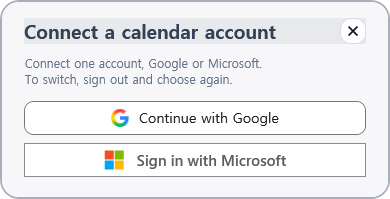
Select Connect a calendar account at the top of the detail panel, then choose Continue with Google or Sign in with Microsoft. Finish signing in and approve access in your browser. ONHARU connects one account at a time; sign out before choosing another account or provider.
You can use it without connecting
Connecting an account is optional. Local events, to-dos, D-Day entries, anniversaries, alarms, timetables, and backups all work without one.
What changes when connected
- The list of calendars from the connected account appears in the detail panel, and each calendar can be turned on and off.
- The New Event window can save to an editable Google or Outlook calendar.
- Google connections can show Tasks and contact birthdays. These items are unavailable with Microsoft.
- Calendars shared as read-only are marked Not editable and cannot be changed.
Local events and connected events
Connected events stay in step with the Google or Outlook calendars you select, while Work and Personal events remain on this PC. When you are signed in, anniversaries are saved in both places. Editing or deleting on one side is reflected on the other at the next sync. Restoring a local backup never overwrites the original events in a connected account.
Google Tasks
It is off at first. Enable Google Tasks display and sync in Settings and review the notice; the task list and its synchronization then appear. If you granted access to a task list when signing in, ONHARU can create tasks and edit their title, date, notes, and completion. For tasks created in Google, only the completion mark can be changed.
ICS calendar subscriptions
Under Calendar subscriptions in Settings, enter an HTTPS or webcal address and a name, then choose whether it lands in Work, Personal, User1, or User2. You can add up to ten, read-only. Fetch now reaches the calendar without saving, and feeds also refresh when the app starts and when it synchronizes. If a fetch fails, the events last received stay visible. Subscribed events are not included in backups or exports.
Export and import
JSON holds local events exactly as they are, for backup; ICS exchanges events with other calendar apps; CSV is for reviewing or editing in Excel. Before importing, you can choose and confirm which items to add.
Data is separated by account
Each connected account has its own events. Signing out does not delete events stored locally in ONHARU.
When the internet is disconnected
Events are saved on this PC first. When the connection returns, they are uploaded to the selected provider. ONHARU identifies events that are still waiting to sync.
| Storage location | %LOCALAPPDATA%\ONHARU |
|---|---|
| Events | items-local.json stores events used while signed out; items-<account>.json stores events for the connected calendar account. |
| Settings | settings.json |
| Automatic backup | The backups folder keeps the 30 most recent daily backups. |
| Timetable | timetable.json stores the timetable. |
| Record | The logs folder contains diagnostic records. Before sharing a log, check it for private event details or calendar names. |
Moving to another PC
- Use Export in Settings to save your events to a file.
- Install ONHARU on the new PC.
- Open Import in Settings and select the exported file.
Frequently asked questions (FAQ)
A connected calendar is not visible
Why has calendar account sign-in not finished?
Will my events disappear if Google sync fails?
Why does Outlook sign-in request mailbox settings access?
Why can’t I move an Outlook event to another calendar?
Why are recurring instances and times missing from Google Tasks?
Does ONHARU support Google birthdays, out-of-office events, and focus time?
Will importing ICS or CSV change my Google Calendar?
Will restoring a backup affect Google Calendar?
Will uninstalling ONHARU delete my events?
Still need help?
Email us with the details below if you have a question or encounter a problem.
- Your ONHARU and Windows versions
- Your screen resolution, display scaling, and the affected menu
- What you expected, what happened, and steps to reproduce it
Do not send: Never include Google passwords, authentication codes, OAuth tokens, or API keys. Hide personal events and email addresses in screenshots.